File Management Software for Real Estate: Why Folder Structures Are Not a Governance Strategy
Why real estate folder structures fail at scale, how SharePoint metadata fixes retrieval, and when folders are still the right choice.
Published September 27, 2026 · By ARC-Files · 21 min read
Published: September 27, 2026 | By ARC-Files
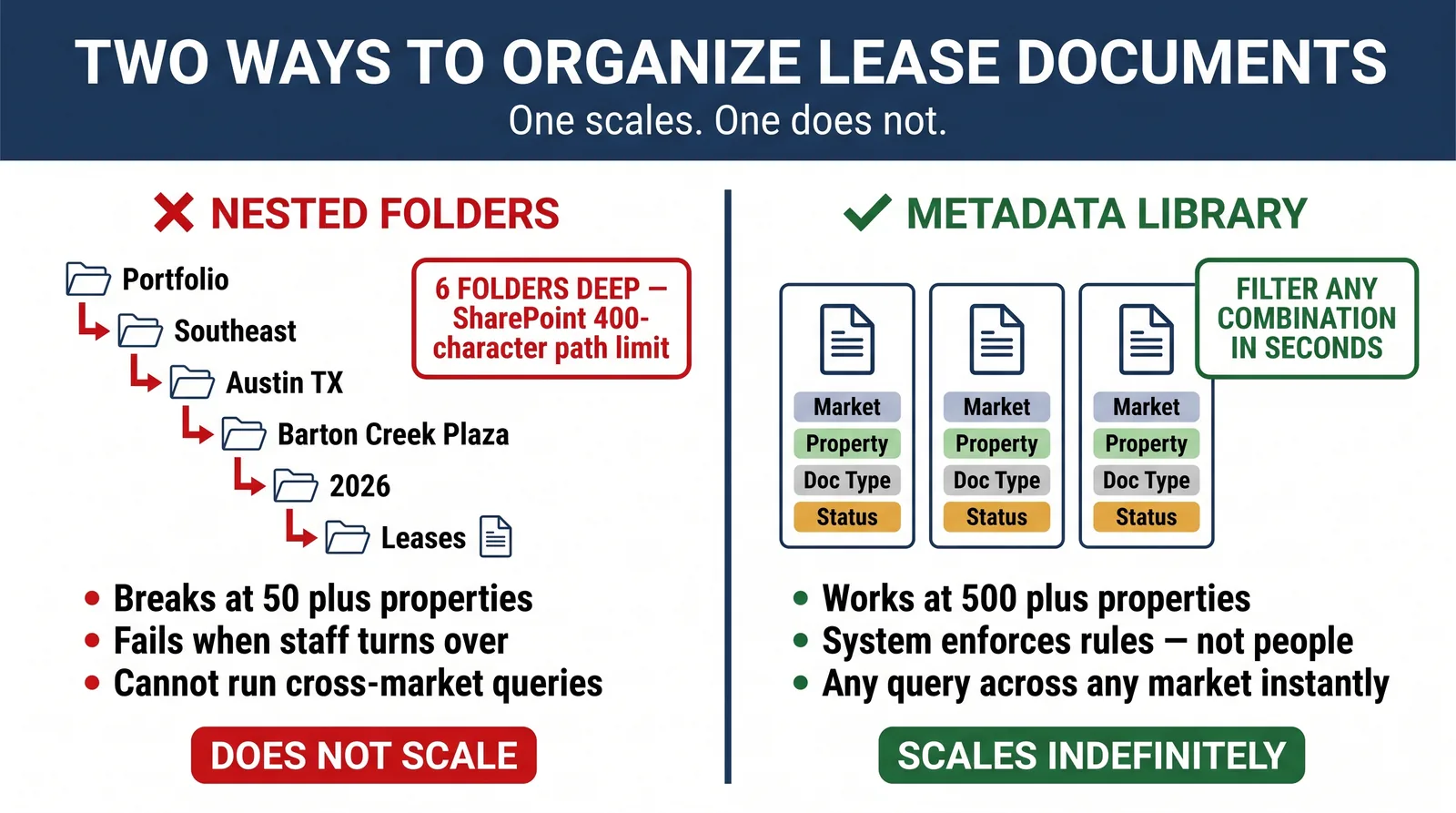
File management software becomes more useful when documents can be retrieved by what they are, not only by where someone saved them. In real estate, folder-only structures break down because the same lease, amendment, title record, or insurance document may legitimately need to be found by property, tenant, document type, date, entity, or counterparty.
Folders are not inherently bad. A folder is simply a hierarchy, and hierarchies are excellent when most people approach information in the same order.
The problem is that a real estate portfolio rarely has only one valid way to ask for a document.
Key Takeaways
- A folder hierarchy encodes one primary retrieval path. Real estate users routinely need several.
- Metadata allows the same document to appear in multiple logical views without creating duplicate copies.
- SharePoint content types can standardize document classes and require specific metadata fields.
- SharePoint's 5,000-item list view threshold is not a 5,000-document storage limit. Libraries can contain far more content when views, indexes, and information architecture are designed correctly.
- Folders remain useful for small, simple repositories and for cases where permissions or navigation genuinely follow the hierarchy.
What Folder Structures Actually Encode
Every folder tree answers a question. Suppose a company organizes documents like this:
Midwest → Illinois → 220 Main Street → ABC Corporation → Lease Documents
A user browsing that structure is answering five questions in sequence: which region, which state, which property, which tenant, and which document category. That works well for someone who knows all five answers.
Now consider a lease amendment for Suite 400 at 220 Main Street. The lease administrator remembers the tenant. Legal remembers the counterparty name. Asset management remembers that the amendment was executed in 2024. A regional operations manager remembers the property but not the tenant. An acquisition team wants every lease amendment across the portfolio.
The file has not changed. The question has.
That is the central limitation of folders:
A folder hierarchy encodes one question, while the same document can answer many questions.
A hierarchical path can organize a document by property or tenant or document type or year. Metadata can describe all four at the same time.
The Five Retrieval Paths a Real Estate Document Has
Take one document: First Amendment to Lease for ABC Corporation, Suite 400, 220 Main Street, executed March 14, 2024. At least five legitimate retrieval paths exist.
1. Retrieve by property
An operations manager asks: Show me every document for 220 Main Street. The tenant is secondary.
2. Retrieve by tenant or counterparty
Legal asks: Show me every agreement with ABC Corporation. The property may be unknown.
3. Retrieve by document type
Lease administration asks: Show me every lease amendment that still needs abstraction review. Property and tenant are filters, not starting points.
4. Retrieve by execution year
An auditor asks: Show me every executed lease document from 2024. The folder hierarchy may not contain a year level at all.
5. Retrieve from incomplete memory
An asset manager says: I don't remember the property, but it was an ABC document for Suite 400. This is common in practice. The user remembers one or two attributes, not the full directory path.
A folder architecture works best when users already know how the repository was designed. A metadata architecture works when users know something about the document. That distinction becomes more important as the portfolio grows.
Metadata vs. Folders: A 300-Document Property Worked Example
Consider a single commercial property with 300 documents. The repository contains:
- 80 lease and amendment records;
- 35 tenant correspondence records;
- 25 insurance documents;
- 30 title/legal records;
- 30 environmental and due-diligence records;
- 35 financial/CAM records;
- 40 capital-project records;
- 25 operating and miscellaneous records.
There are two ways to organize the same 300 files.
Option A: The Five-Level Folder Tree
A plausible structure looks like:
/Properties/Midwest/220 Main Street/ABC Corporation/Lease Documents
Lease - Executed.pdf
First Amendment.pdf
Second Amendment.pdf
Another tenant gets another branch: /Properties/Midwest/220 Main Street/XYZ Retail/Lease Documents.
Title records do not have tenants, so another structure appears: /Properties/Midwest/220 Main Street/Property Legal/Title.
Insurance may be organized by vendor: /Properties/Midwest/220 Main Street/Vendors/ABC Mechanical.
Capital projects may use the project name: /Properties/Midwest/220 Main Street/Capital Projects/2026 Lobby Renovation.
Nothing is obviously wrong with any of these structures. That is precisely why the architecture begins to drift.
What the Folder Version Can Answer Easily
It handles "Show me ABC Corporation's lease documents at 220 Main" very well.
But now try "Show me all lease amendments at the property." You need to open every tenant branch.
Try "Show me all documents executed in 2024." Execution year is not represented consistently in the path.
Try "Show me every document involving ABC Corporation, including vendor and legal records." ABC Corporation may occur under several different folder branches.
Try "Show me all expired insurance documents." Expiration is not a location.
Folders work until the query differs from the hierarchy.
Option B: One Library with Six Metadata Columns
The same 300 documents can instead sit in a SharePoint document library with six controlled attributes:
| Metadata column | Example value |
|---|---|
| Property | 220 Main Street |
| Counterparty / Tenant | ABC Corporation |
| Document Type | Lease Amendment |
| Execution / Effective Date | March 14, 2024 |
| Suite / Asset / Area | Suite 400 |
| Record Status | Executed - Current |
The underlying file can still have a sensible name: ABC Corporation - First Lease Amendment - 2024-03-14.pdf. But the filename and folder are no longer responsible for carrying every business fact.
The Same Document Can Now Appear in Many Views
View 1: Property file
Filter: Property = 220 Main Street. Result: all 300 records.
View 2: Lease register
Filter: Property = 220 Main Street AND Document Type = Lease OR Lease Amendment. Result: all lease documents regardless of tenant folder.
View 3: ABC Corporation file
Filter: Counterparty = ABC Corporation. Result: every relevant record associated with the counterparty.
View 4: 2024 executed documents
Filter: Execution Date = 2024 AND Record Status = Executed. Result: the year-specific record population without reorganizing anything.
View 5: Suite 400 history
Filter: Suite / Asset / Area = Suite 400. Result: lease documents, amendments, relevant construction material, and other classified records associated with the space.
View 6: Current authoritative records
Filter: Record Status = Executed - Current. Result: users can exclude superseded copies without moving them into a separate "Old" folder.
One file can participate in all six views. No duplication is necessary.
Folder Structure vs. Metadata Architecture
| Requirement | Five-level folder tree | Metadata library |
|---|---|---|
| Browse by property | Strong | Strong |
| Browse by tenant | Strong if hierarchy follows tenant | Strong |
| Find all amendments | Weak across many tenant folders | Strong |
| Find records by execution year | Weak unless year is part of hierarchy | Strong |
| Find by counterparty | Weak when counterparty appears in multiple branches | Strong |
| Find by suite | Requires another hierarchy level or naming convention | Strong |
| Change classification | Move file | Change metadata |
| Create a new retrieval path | Restructure or duplicate folders | Create another view/filter |
| Use standardized taxonomy across properties | Manual discipline | Controlled content types/term sets |
| Scale to portfolio-wide reporting | Difficult | Much stronger |
The difference is not cosmetic. Folders define location. Metadata defines identity and context.
Content Types and the Term Store: Enforcing Taxonomy Rather Than Hoping for It
Metadata only works if values are consistent. If one property uses Lease Amendment, another uses Amendment, and another uses Lease Mod, a filter for Lease Amendment no longer represents the portfolio.
This is where SharePoint content types and managed metadata matter.
What Is a SharePoint Content Type?
A content type is a reusable definition for a class of content. Microsoft allows content types to include specific metadata columns, templates, and settings. Columns can also be marked as required, meaning users can be prompted to supply the associated metadata when saving content.
A Lease Amendment content type might require Property, Tenant, Parent Lease ID, Execution Date, Amendment Number, and Record Status. A Certificate of Insurance content type might instead require Property, Vendor, Carrier, Effective Date, Expiration Date, and Coverage Status. Those are different records with different retrieval requirements. They should not necessarily share one generic upload form.
The Term Store Controls Vocabulary
SharePoint managed metadata allows administrators to create centrally controlled term sets. For example, a Document Type term set might include Lease, Lease Amendment, Assignment, Estoppel, SNDA, Certificate of Insurance, Title Policy, Survey, Phase I ESA, and CAM Reconciliation.
Users choose an approved term instead of inventing their own spelling. Microsoft's Term Store can centrally manage these values, and Managed Metadata columns can connect libraries to specific term sets.
That matters when the portfolio expands. If the organization later decides that Lease Modification should be consolidated into Lease Amendment, the taxonomy can be governed centrally rather than manually changing hundreds of folder names.
Microsoft also supports publishing reusable content types across SharePoint sites through the content type hub, allowing standardized definitions to be made available across an organization.
This is the difference between "Please name your folders consistently" and "These are the approved document types the system accepts."
Related: Building a SharePoint Metadata Taxonomy for Real Estate.
Why Folder Structures Decay Within 18 Months
The 18-month period is a practitioner heuristic, not a Microsoft benchmark or published industry statistic. The point is not that every folder tree fails on day 548. The point is that a structure created for today's team begins accumulating exceptions as the business changes.
Month 1: Everything is clean
The administrator creates Property → Tenant → Document Type. Everyone agrees.
Month 4: The first exception appears
Legal wants privileged documents outside the operations folders. A /Legal branch is created.
Month 7: Someone wants year-based filing
Accounting creates /2026 inside certain categories. Another property does not.
Month 10: A new market joins
The new team already uses different terminology: "COIs" instead of "Certificate of Insurance," and "Mods" instead of "Lease Amendment."
Month 13: An acquisition arrives
The acquired portfolio comes with its own structure: Asset / Agreements / Occupants. Nobody wants to reorganize 20,000 files immediately.
Month 16: Shortcuts and duplicates appear
People cannot reliably find files, so they save copies where they expect them to be. Now the same executed amendment exists under tenant, legal, acquisition, and diligence folders.
Month 18: The hierarchy no longer represents one rule
It represents several years of local decisions.
The failure is rarely that employees ignored the structure. More often, several employees made individually reasonable decisions that were incompatible with each other.
Metadata does not eliminate governance problems. It gives administrators a better mechanism for governing change. A controlled taxonomy can evolve without requiring the physical location of every document to change.
The 5,000-Item Threshold and Other SharePoint Behaviors Folder-Heavy Libraries Hit
The SharePoint 5,000-item threshold is frequently misunderstood.
It Is Not a 5,000-Document Library Limit
Microsoft currently supports up to 30 million files and folders in a SharePoint document library. The 5,000-item list view threshold relates to resource-intensive operations and queries that attempt to process too many items at once. Microsoft documents the default SharePoint Online list view threshold as 5,000 items.
A library with 25,000 documents is therefore not inherently broken. A poorly designed view over those 25,000 records can be.
Indexed Columns Matter
Microsoft recommends reducing large views through filtering and indexed columns. A view based on appropriately indexed metadata can limit the queried result set rather than trying to operate over the entire library.
For a real estate portfolio, useful indexed fields might include Property, Market, Document Type, Record Status, and Execution Date. The library can hold a large population while users work through narrower operational views.
Folders Can Also Help with the Threshold
Folders are not technically prohibited. Microsoft specifically notes that folders can be used to keep a returned view beneath the list view threshold.
This is an important reason not to turn "metadata vs. folders" into a religious argument. A hybrid architecture can be correct. For example: one site per market → one library per major governance boundary → limited folders where permissions or operational navigation justify them → metadata inside those containers.
The problem is not the presence of folders. The problem is making the folder path carry every retrieval, governance, and classification responsibility.
Permissions Also Influence Architecture
SharePoint supports up to 50,000 unique permission scopes per list or library, but Microsoft recommends keeping unique permissions below 5,000 for best performance.
This has a practical consequence. If 10,000 files each receive individually broken permissions, the library becomes difficult to administer. If those 10,000 files inherit permissions from a smaller number of sensibly secured folders, the number of unique permission scopes can remain much lower. Microsoft explicitly describes this inheritance pattern in its permission guidance.
That is a legitimate use for folders. Use folders when the hierarchy reflects a real security or operating boundary. Do not use them merely because Windows Explorer taught everyone to organize information that way.
When Folders Are Still the Right Call
Folders are often the simplest and best answer when the information problem is simple.
Small team
If five people manage the same property and everyone understands the hierarchy, metadata overhead may create more work than value.
Single market
A local team may not need centrally managed portfolio terminology.
Fewer than roughly 1,000 documents
This is a practical threshold, not a SharePoint limit. If retrieval is fast, the authoritative copy is obvious, and the folder structure has few exceptions, there may be no reason to rebuild it.
Strong permissions boundaries
A secured folder can be useful when a coherent group of files shares the same access rules. Microsoft confirms that child files can inherit the folder's permission scope, reducing the need for thousands of file-specific ACLs.
Temporary project work
For short-lived collaboration, folders such as Working, Review, and Approved can be intuitive. Just be careful when those temporary states become the permanent records architecture.
Human browsing matters
Sometimes users genuinely want to browse Building → Floor → System. A folder can provide a natural spatial navigation experience. Metadata can coexist with it.
The strongest architecture is often not folders or metadata. It is:
Use folders where hierarchy has operational meaning. Use metadata where the document must answer more than one question.
Frequently Asked Questions
Should I use folders or metadata in SharePoint?
Use metadata when users need to retrieve the same documents by several attributes such as property, tenant, document type, date, status, or counterparty. Use folders where a hierarchy has clear navigational or permission value. Many SharePoint environments work best with a hybrid design rather than eliminating folders completely.
What is a SharePoint content type?
A SharePoint content type is a reusable definition for a class of content. It can specify metadata columns, document templates, and other characteristics. Microsoft allows administrators to make metadata fields required and to publish content types through the SharePoint content type hub so the same definitions can be reused across sites.
What is the 5,000 item limit in SharePoint?
The 5,000-item threshold is a list view/resource threshold, not the maximum size of a document library. SharePoint Online libraries can contain up to 30 million files and folders, but operations or views that process too many items can trigger the 5,000-item threshold. Indexed columns and filtered views are common ways to manage large libraries.
How should real estate files be organised?
Start with the ways users need to retrieve the documents. Useful real estate metadata often includes property, legal entity, counterparty or tenant, document type, important dates, suite or asset, and record status. Use content types and controlled term sets for categories that need portfolio-wide consistency, then add folders only where hierarchy or permissions genuinely help.
Is a flat SharePoint document library always better than folders?
No. A flat library is useful when metadata provides several retrieval paths, but folders can still simplify permissions, browsing, temporary project work, and smaller repositories. The design goal is not maximum flatness. It is minimizing dependence on one physical path when users need several ways to retrieve the same record.
Where ARC-Files Fits
ARC-Files, the SharePoint-native document management platform from Al-Rafay Global, is designed for organizations whose SharePoint estate already contains real estate documents but whose folder structures, metadata, and taxonomies have become inconsistent across libraries or markets.
Its stated architecture includes metadata-governance and bulk-tagging capabilities inside the customer's Microsoft 365 tenant rather than requiring the organization to migrate all documents into a separate repository.
That approach is relevant when the underlying SharePoint platform is adequate but the information architecture is not.
A simpler native SharePoint configuration is the better answer when the organization has a small document estate, one operating team, and a folder structure that continues to retrieve documents reliably.
For related guidance, see ARC-Files features and the broader document management glossary.
Sources Cited
- Microsoft Learn — SharePoint Online limits. Microsoft documents up to 30 million files and folders per document library, plus permission and other service limits.
- Microsoft Learn — SharePoint list view threshold. The SharePoint Online list view threshold is 5,000 items for affected resource-intensive operations; it is not a 5,000-file storage limit.
- Microsoft Learn — filtering large libraries. Microsoft recommends indexed columns and filtered views and also notes that folders can help constrain large views.
- Microsoft Learn — managed metadata. SharePoint's Term Store and Managed Metadata columns provide controlled taxonomy values and metadata-based navigation.
- Microsoft Learn — content types. Content types provide reusable document characteristics, metadata, and templates and can be published across SharePoint.
- Microsoft Learn — permission scopes. Microsoft documents unique permission scopes, inheritance behavior, and the recommendation to keep unique ACL scopes below 5,000 where possible.
Last updated: September 27, 2026
Keep reading
Suggested Articles
Continue exploring document management, SharePoint governance, and compliance for commercial real estate teams.